OpenClash Network Access Configuration
For specific configuration details, please refer to the YouTube video in the README documentation. When the author has time, a pre-configured firmware will be released directly.
Network Access Configuration
Honestly, isn't this what all the software router tinkering has been for? When you successfully configure network access and see all your home devices freely and quickly accessing the internet, that moment of satisfaction is absolutely the meaning of all this effort.
Next, let's configure OpenClash and see how to make OpenWrt's software router truly "fly".
1. Install Network Access Plugins such as OpenClash
Download and add according to personal preference (cannot use multiple simultaneously!)
- OpenClash (Highly recommended, most widely used, this tutorial is based on it)
- passWall
- etc.
After installing the OpenClash plugin, watch this video first and complete the basic configuration step by step: Link: https://www.youtube.com/watch?v=1U9xkpexHOE
Unlike in the video, the config.yaml in the video has two issues in actual use: first, LinkedIn cannot be accessed normally, and second, academic websites like IEEE cannot correctly identify academic network IPs, requiring frequent network switching to download papers. The configuration provided in this article adjusts rules and DNS splitting to solve these issues and provides reproducible examples and verification steps.
Config file options (all in repo root):
config.yaml: base version for customizationconfig_linkedin.yaml: LinkedIn fix (DNS/rule exclusions)config_linkedin_auto.yaml: smart switch (auto failover groups based on the LinkedIn fix)
Recommended: use config_linkedin_auto.yaml.
Notes: Academic repositories and Steam downloads go direct; LinkedIn uses overseas DNS to prevent CN redirects (keep DNS unchanged).
Before use, set your subscription URL in proxy-providers.
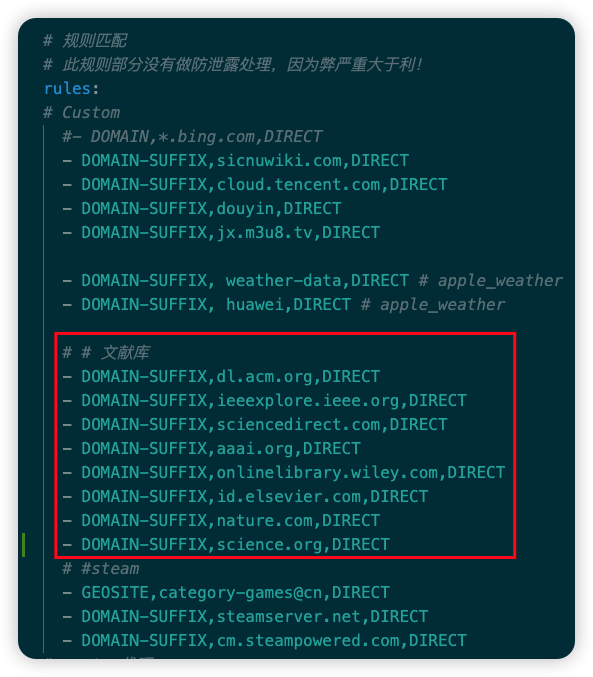
Custom direct rules (including academic sites):
- Rules match top-to-bottom, earlier rules win
- Add direct rules in
rulesunder# Customor# Academic, e.g.:DOMAIN-SUFFIX,example.edu,DIRECTDOMAIN,sub.example.edu,DIRECTIP-CIDR,1.2.3.0/24,DIRECT,no-resolve
- To proxy instead, replace
DIRECTwith your default proxy group (for example,🚀 Default Proxy) - Reload OpenClash after changes
2. Advanced Usage
Custom rule additions:
- OpenClash Maintenance Guide
- Custom OpenClash Rules Configuration successful!
- GitHub Access Optimization
- Add GitHub-related domains to direct connection rules
- Solve GitHub access speed and image display issues by modifying local hosts file