OpenClash Network Access Configuration
Use this guide after the base network works with OpenClash disabled. Otherwise, complete the base-network checks first.
Acceptance result: OpenClash reports a running state, direct and proxied sites are accessible, and the base network still works after OpenClash is disabled.
Read in this order:
- select and import the applicable YAML template
- configure the OpenClash interface options
- add direct or proxy rules when required
- review the academic library, LinkedIn, and GitHub SSH port
22scenarios
Choose one of the three supported OpenClash YAML files:
| File | Use case |
|---|---|
| config_linkedin_auto.yaml | Default choice for most users |
| config_multi-airport_linkedin.yaml | Two subscriptions with cross-provider failover |
| config_linkedin_auto_ssh22_redir.yaml | Use only when GitHub SSH port 22 fails under OpenClash |
The older config.yaml and config_linkedin.yaml were legacy transition files and are now deprecated.
If you have one subscription, start with config_linkedin_auto.yaml. Use the multi-provider profile only when both subscriptions update independently and you actually need failover.
The templates include:
- room for your own custom
rules:entries - direct-routing ideas for academic libraries, so paper downloads need less proxy toggling
- a LinkedIn international-access fix
- automatic failover in the default config, so daily use needs less manual node switching
OpenClash functions
OpenClash is a proxy management plugin for OpenWrt and ImmortalWrt. It manages subscriptions, nodes, DNS, routing rules, and policy groups. Rules can send domains, IP ranges, and ports to direct connections or selected proxy groups.
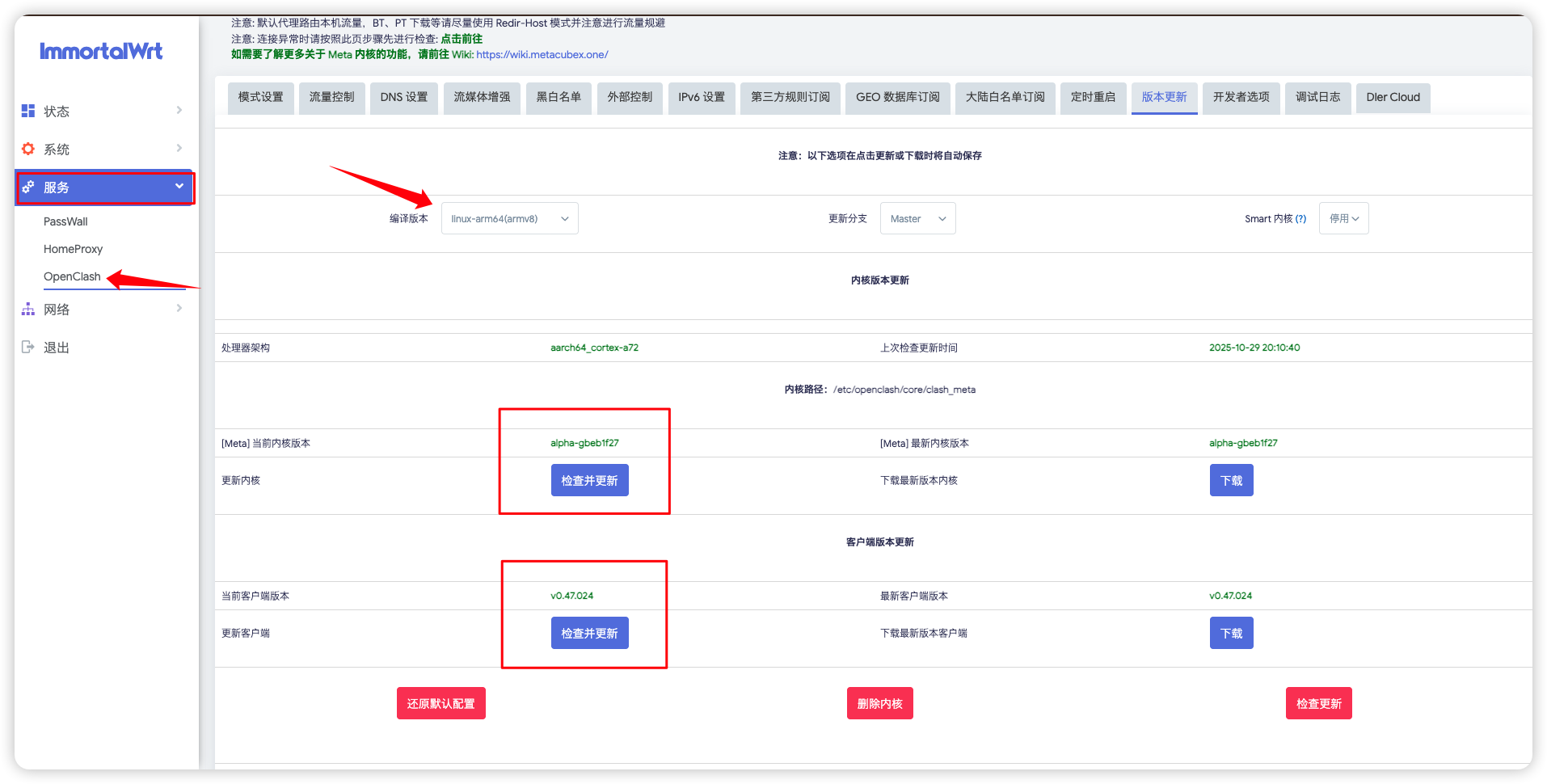
Download and install OpenClash
Before installing, confirm two things:
- whether your system is
24.10 and earlieror25.12+ - whether the package you downloaded matches both your system version and device architecture
There are two common ways to install it.
Option 1: install directly from the system
If your firmware source already provides OpenClash, you can install it directly.
For 24.10 and earlier:
opkg update
opkg install luci-app-openclash
For 25.12+:
apk update
apk add luci-app-openclash
Option 2: download a matching package and install it manually
If your package source does not include OpenClash, the usual path is to download a package that matches your system and then install it manually.
Check these points:
- the plugin build should match your OpenWrt / ImmortalWrt version
- the package architecture should match your device
- do not reuse the older
opkg/.ipkflow on newerapksystems
Typical install commands:
# 24.10 and earlier
opkg install /tmp/example.ipk

# 25.12+
apk add --allow-untrusted /tmp/example.apk
After installation, the entry is usually available in LuCI under:
Services -> OpenClash
Basic configuration
- Check your OpenWrt release:
cat /etc/openwrt_release
-
Use
opkgon24.10and earlier, andapkon25.12+. -
Edit your subscription URL:
proxy-providers:
  Airport1:
    url: "your-subscription-url"
The multi-provider profile contains two provider URL fields. Never commit a real subscription URL to a public repository; rotate it immediately if it has been exposed.
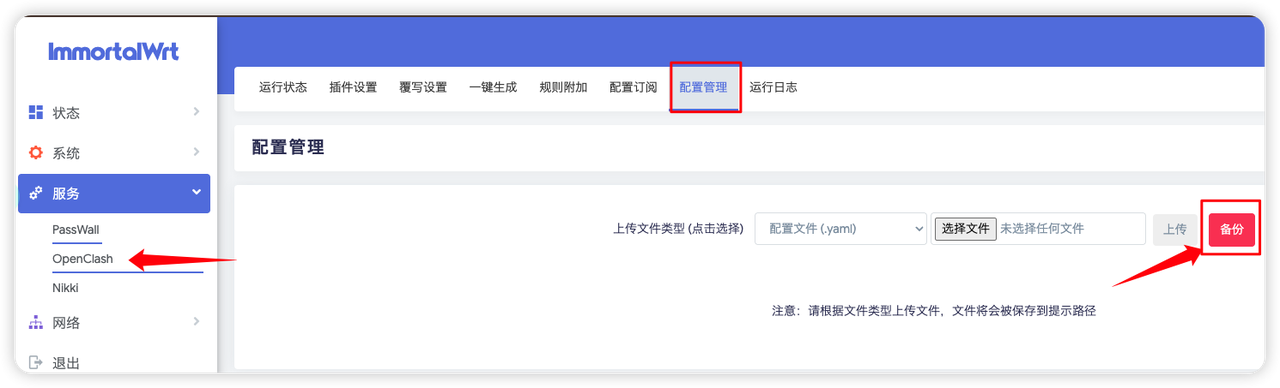
- Import the YAML into OpenClash and apply it.
Interface settings for config_linkedin_auto.yaml
Apply these settings before adding custom rules.
- Disable
Bypass Mainland China / Bypass China - Disable DNS override options such as
Custom Upstream DNS,Respect-Rules, and any appended upstream/default DNS options - Do not change this config to
redir-host; it is written around thefake-ipflow
The LinkedIn fix depends on three pieces working together:
- the
fake-ip-filterexclusion - the
cn_domainexclusion - explicit proxy rules for
linkedin.com,linkedin.cn,licdn.com, andlnkd.in
nameserver-policy is not required in the current solution; it is kept only as a fallback idea.
Basic configuration acceptance checks
After completing the installation, import, and interface settings, confirm that you can:
- import and enable the config
- start browsing through the proxy normally
- use the YAML's built-in routing behavior as-is
The remaining sections cover:
- add extra direct/proxy rules
- understand how Steam, academic-library routing, LinkedIn, and SSH
22are handled - keep tuning the YAML for your own usage
Custom rules: entries
The main place users should customize is the rules: block.
- put your own rules near the top of
rules: - keep them above broad
RULE-SETentries - remember that matching is top to bottom
Example:
rules:
  - DOMAIN-SUFFIX,example.edu,DIRECT
  - DOMAIN-SUFFIX,example.com,🚀 默认代理
  - RULE-SET,private_ip,直连
  - RULE-SET,private_domain,直连
Common formats:
DOMAIN-SUFFIX,example.com,DIRECTDOMAIN,sub.example.com,DIRECTIP-CIDR,1.2.3.0/24,DIRECT,no-resolveDST-PORT,22,DIRECT
Common targets:
DIRECTor直连: direct connection🚀 默认代理: default proxy group🤖 ChatGPT: ChatGPT group👨🏿💻 GitHub: GitHub group
Examples:
- DOMAIN-SUFFIX,library.example.edu,DIRECT
- DOMAIN-SUFFIX,openai.com,🤖 ChatGPT
- DOMAIN-SUFFIX,download.example.com,DIRECT
- DOMAIN-SUFFIX,www.example.com,🚀 默认代理
- DST-PORT,22,DIRECT
After editing:
- save the YAML
- re-upload it or replace the active config
- reload/apply the config in OpenClash
Template scenarios
Steam: store via proxy, downloads via direct routing
Steam store and community pages use a different policy from download traffic:
- store/community pages can use proxy routing
- downloads and CN game-distribution resources stay direct where appropriate
This reduces manual switching and usually keeps downloads more suitable for local routing.
Academic libraries: direct routing for institution IP recognition
Direct rules allow academic platforms to identify the egress IP of a campus, institution, or other authorized network.
That reduces the need to repeatedly disable and re-enable the proxy just to download papers, and helps avoid the common case where the site opens but PDF/download permissions are identified incorrectly.
LinkedIn international access
LinkedIn is only one built-in scenario, not the whole point of the guide. The config keeps the usual mainland-direct / non-mainland-proxy logic, but excludes LinkedIn from the mainland path and forces LinkedIn-related domains into the default proxy group.
config_linkedin_auto_ssh22_redir.yaml use case
Use this file only when GitHub SSH 22 is broken and errors look like Connection closed by remote host or kex_exchange_identification.
Required UI settings:
- select config_linkedin_auto_ssh22_redir.yaml
- switch OpenClash mode to
Redirorredir-host - disable
TUN - keep
DST-PORT,22,DIRECT - still disable mainland-bypass and DNS override options
If you do not have an SSH 22 problem, keep using the default config_linkedin_auto.yaml.
References
- OpenWrt
apk: https://openwrt.org/docs/guide-user/additional-software/apk - OpenWrt
opkg: https://openwrt.org/docs/guide-user/additional-software/opkg - OpenWrt
opkg -> apkcheatsheet: https://openwrt.org/docs/guide-user/additional-software/opkg-to-apk-cheatsheet - OpenClash maintenance notes: https://blog.dreamtobe.cn/openclash_maintain/
- Custom rules reference: https://github.com/Aethersailor/Custom_OpenClash_Rules