Firmware Writing Tools and Steps
- Firmware Source: ImmortalWrt Firmware Selector
- Important Notes:
- EXT4 version will overwrite all user settings
(Overwrite mode - flash this firmware if you need to reconfigure!) - SQUASHFS version preserves user configurations after flashing
(Incremental mode)
- EXT4 version will overwrite all user settings
Windows
Download the firmware with the .gz suffix and extract it:

Burn the .img file in the directory to a new device. After selecting the file, click "Write" to start writing.
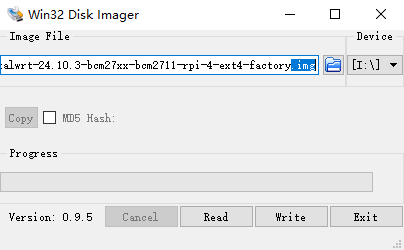
After success, a prompt will pop up asking you to format the disk—click Cancel. If an error message appears saying "Cannot access...", click OK. The burning process is now complete!
Common Issue:
If your USB drive is still empty after burning, you probably clicked "Read" the first time, which wrote the USB contents into the img file. Solution: Re-extract the firmware and burn it again (make sure not to click the wrong button this time)!

MacOS
For MacOS burning methods, please refer to: https://stepneverstop.github.io/burn-system2raspberry-in-macos.html
-
Download SD Memory Card Formatter to format the USB drive.
-
Command-line or easy burning: Use the image burning tool balenaEtcher
# List all drives
# Enter the command in the terminal: diskutil list
# Here, we get the disk path of the TF card as /dev/disk6

# Unmount the TF card
# Enter the command in the terminal: diskutil unmountDisk + SD card device path
diskutil unmountDisk /dev/disk6
# Output: Unmount of all volumes on disk6 was successful

# Start burning
# Enter the command in the terminal: sudo dd if=path_to_image of=SD_card_device_path bs=1m;sync, and enter the admin password.
# Note: Do not use Chinese characters in the file path. You can change bs=1m to bs=4m to speed up the burning process.
# This process takes some time; for a 400MB image, it takes about 2 minutes.

- Eject the TF card/USB drive.
diskutil eject /dev/disk6
- Remove the media and install it on the Raspberry Pi.
End.