OpenWrt Configuration Backup and Restore
An OpenWrt configuration archive is not a full disk image. It primarily saves files such as /etc/config; it does not automatically reinstall every third-party package and kernel module.
Completion check: the archive is stored on another device, its contents can be listed, and the firmware release and extra packages have been recorded.
What a backup normally contains
Typically included:
- network, wireless, firewall, and DHCP configuration
- system, user, and service configuration
- custom files explicitly listed in
/etc/sysupgrade.conf - plugin settings stored in standard configuration paths
Typically not included:
- the firmware image itself
- installed package binaries and kernel modules
- large files outside the backup list or in temporary directories
- the SD-card partition layout
Whether every OpenClash file is included depends on plugin version, file location, and backup rules. Export important YAML separately, and protect any subscription URL inside it.
Record the environment first
Save this information over SSH:
cat /etc/openwrt_release
uname -m

# 25.12+
apk list -I > /root/installed-packages.txt 2>/dev/null

# 24.10 and older
opkg list-installed > /root/installed-packages.txt 2>/dev/null
Add /root/installed-packages.txt to the backup list or download it separately.
Also record:
- device model and firmware target, such as
bcm27xx/bcm2711 - current management address
- the WAN device and LAN interface
- OpenClash and other third-party plugin versions
Generate an archive in LuCI
- Open
System -> Backup / Flash Firmware. - Confirm custom files in the backup list when that option is available.
- Generate an archive.
- Save the
.tar.gzwith the browser's normal download function. - Use a clear filename, such as
raspi-immortalwrt-25.12-2026-08-10.tar.gz.
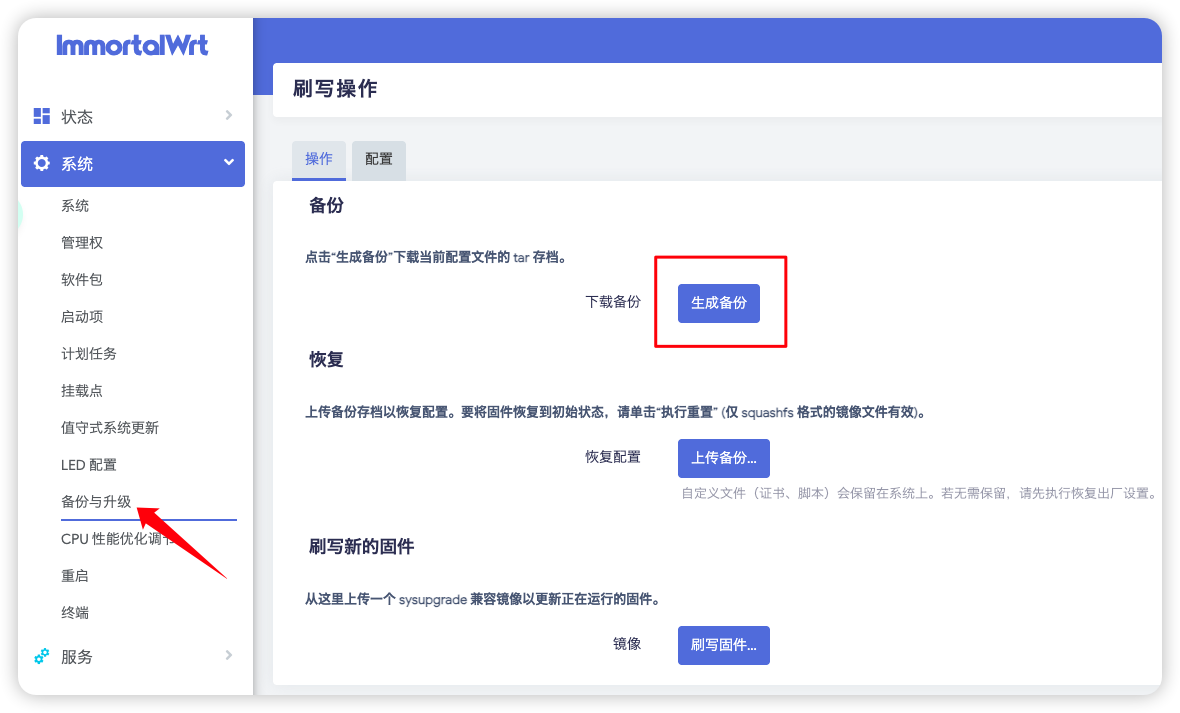
If the file is abnormally small, cannot be opened, or contains an error page, disable download-intercepting browser extensions and retry.
Verify the archive
On macOS or Linux:
tar -tzf raspi-immortalwrt-backup.tar.gz | head -50
Use 7-Zip on Windows. Confirm that the archive contains at least:
etc/config/network
etc/config/firewall
etc/config/dhcp
etc/config/wireless
An archive that cannot be opened or lacks critical configuration is not a rollback plan.
Back up OpenClash separately
You can also export the active profile from OpenClash configuration management.
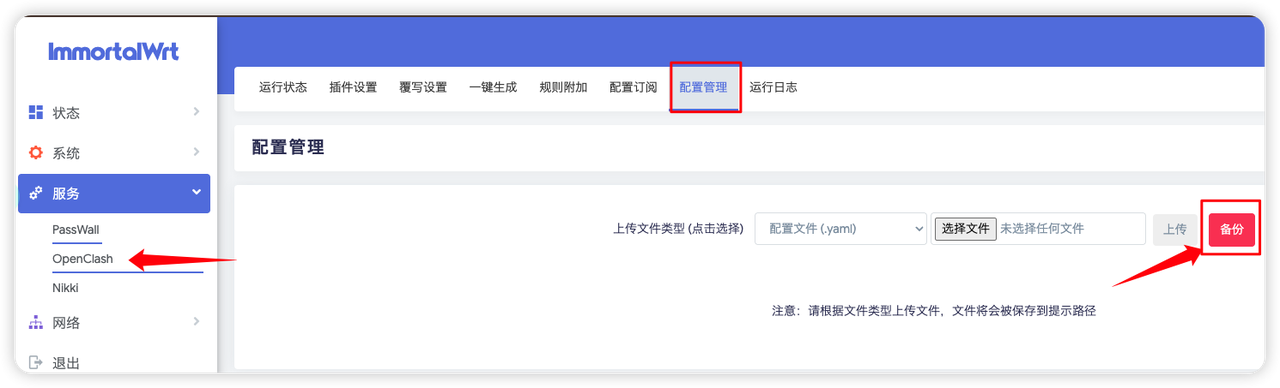
YAML may contain real subscription URLs, node details, and credentials. Never publish it or commit it to a public repository.
Check compatibility before restoring
| Restore target | Recommendation |
|---|---|
| Same device and firmware release | Full restore is usually the first choice |
| Same device and same major release | Usually suitable, but back up the target system first |
| 24.10 to 25.12+ | Prefer the official upgrade path; re-check third-party packages for apk |
| Different device or changed interface names | Avoid blindly replacing network configuration; restore selectively |
| Archive from an unknown source | Inspect it first; do not upload it directly |
Archives may contain passwords, SSH keys, and subscription URLs. Transfer them only between trusted devices.
Same-device restore
1. Prepare a matching system
Restore directly when LuCI still works. For a new card or an unbootable system, first flash matching firmware using the flashing guide.
Confirm the device target, LuCI access, and current management address before continuing.
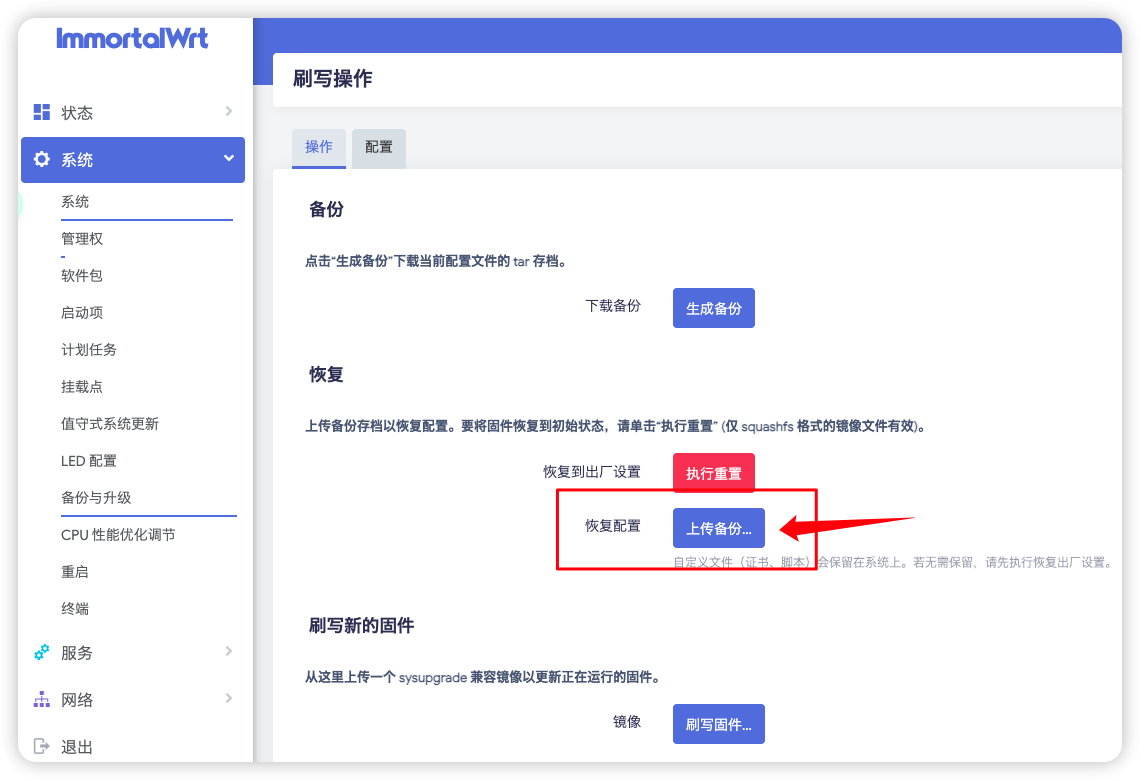
2. Upload the archive
Under System -> Backup / Flash Firmware, select restore/upload backup and choose the .tar.gz file.
Restoration can immediately change the management IP, SSID, and password. Before starting:
- know the old management address stored in the backup
- prefer a wired connection
- expect the computer to renew its address afterward
3. Verify from the base layer after reboot
- Sign in using the restored management address.
- Confirm WAN, LAN, wireless, and firewall zones.
- Keep OpenClash disabled while verifying IP, the default route, and DNS.
- Restore or enable third-party plugins afterward.
ip route show
ping -c 3 1.1.1.1
nslookup openwrt.org
4. Reinstall missing packages
Configuration restoration does not guarantee that package binaries exist. Reinstall only the required third-party packages from the saved list.
# 25.12+
apk update
apk add <package-name>

# 24.10 and older
opkg update
opkg install <package-name>
Do not install an unfiltered old package list into a new major release, especially kernel modules.
Cross-version or different-device restore
When interface names, wireless hardware, or package managers change, full restoration may make the target unreachable. A safer path is:
- Extract the archive on a computer.
- Configure management and WAN on the new system independently.
- Migrate non-hardware settings one category at a time.
- Verify after every category.
- Handle wireless and OpenClash last.
Do not overwrite these first unless the hardware layout matches:
/etc/config/network
/etc/config/wireless
/etc/config/system
Single-file rollback
If only one service is broken, do not restore the whole archive.
Before replacing network configuration, preserve the current file:
cp /etc/config/network /root/network.before-restore
Inspect differences and syntax before restarting the service. Remote network restoration is risky; keep a serial or local access path when possible.
Post-restore checklist
- LuCI opens at the expected address
- WAN address, default route, and DNS work
- LAN DHCP and Wi-Fi work
- Firewall still allows
lan -> wanwithout placing WAN in LAN - Required third-party packages have been reinstalled
- OpenClash was enabled only after base-network verification
- A fresh backup was generated after recovery
Continue to system maintenance and troubleshooting.